Peregrine App
The Peregrine desktop app combines project exploration, visual analysis tools, and AI agents in a single graphical environment.
Load a Move package, inspect it through multiple views, run security tasks, and work with agents that can audit autonomously or under your guidance.
Project management
Begin by bringing a project into the app.
- Open a local Move package directory
- Create a new boilerplate project
- Import an on-chain package by its ID over a chosen Sui network
- Select from your recent projects
- Switch the active network for on-chain queries and operations
The app validates the package, loads its structure, and prepares the analysis environment.
Explore
The Explore tab is your primary workspace for visually inspecting the loaded Move package.
In the default security-focused layout, the left sidebar displays Surface Analysis (entry functions, objects, admin controls, external calls, and package internals) and Validation status for your package.
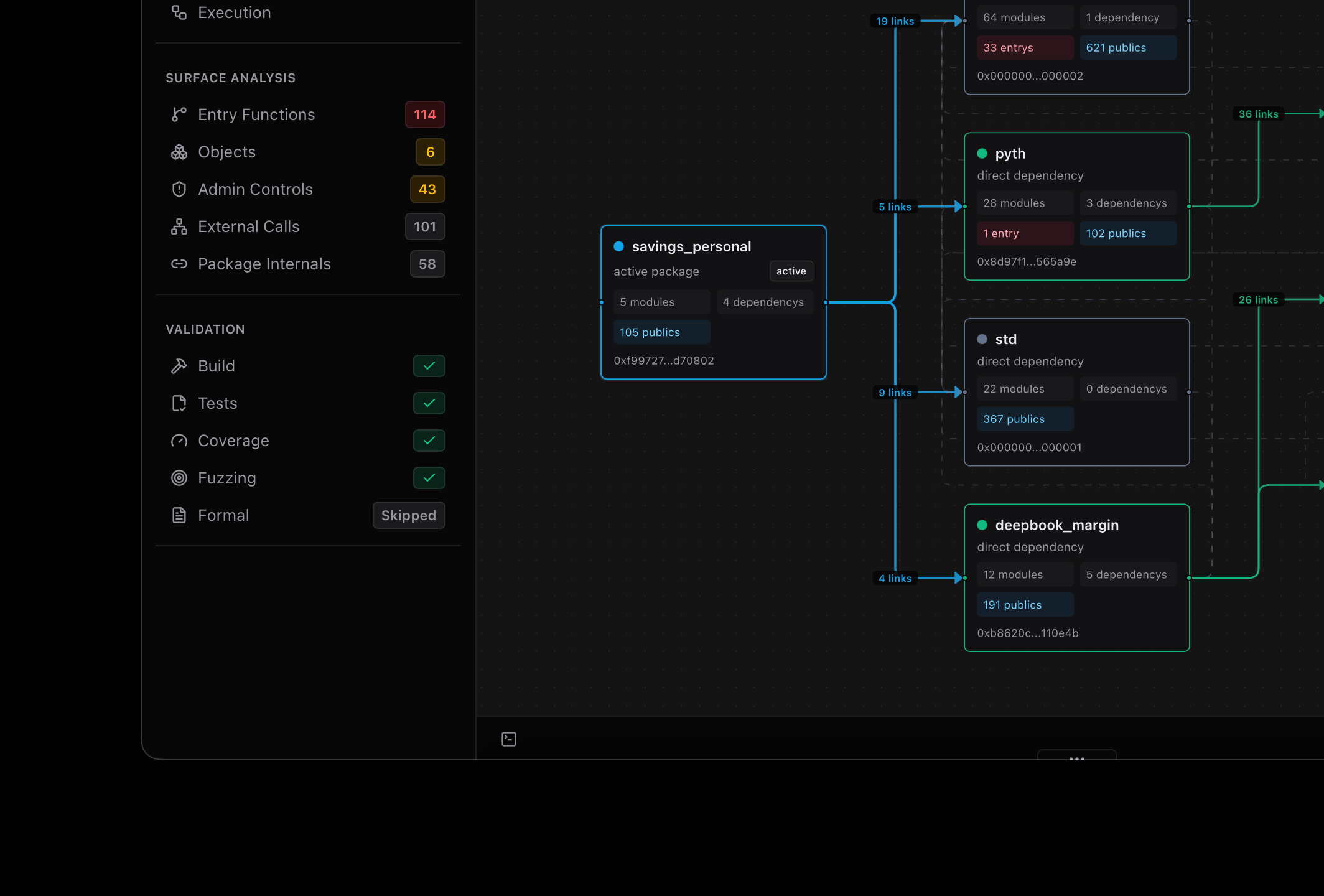
Top tabs switch between different inspection views: Code, Bytecode, Dependency, Call, and Type.
Also toggle into editor mode (see below).
Code view
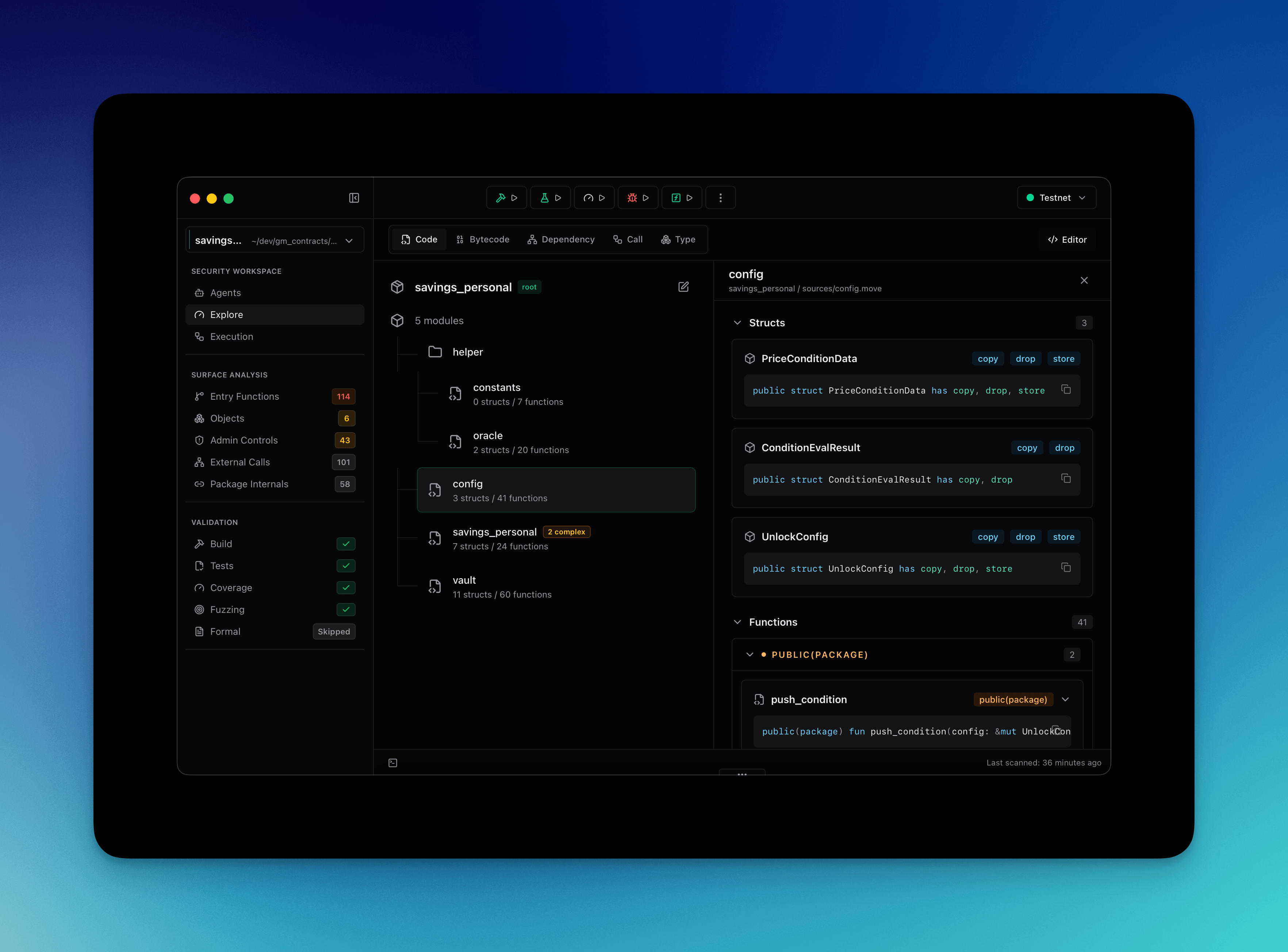
In the security-focused Code view you browse the Move module tree for the loaded package. Selecting a module or item shows its structs and functions in the detail pane on the right.
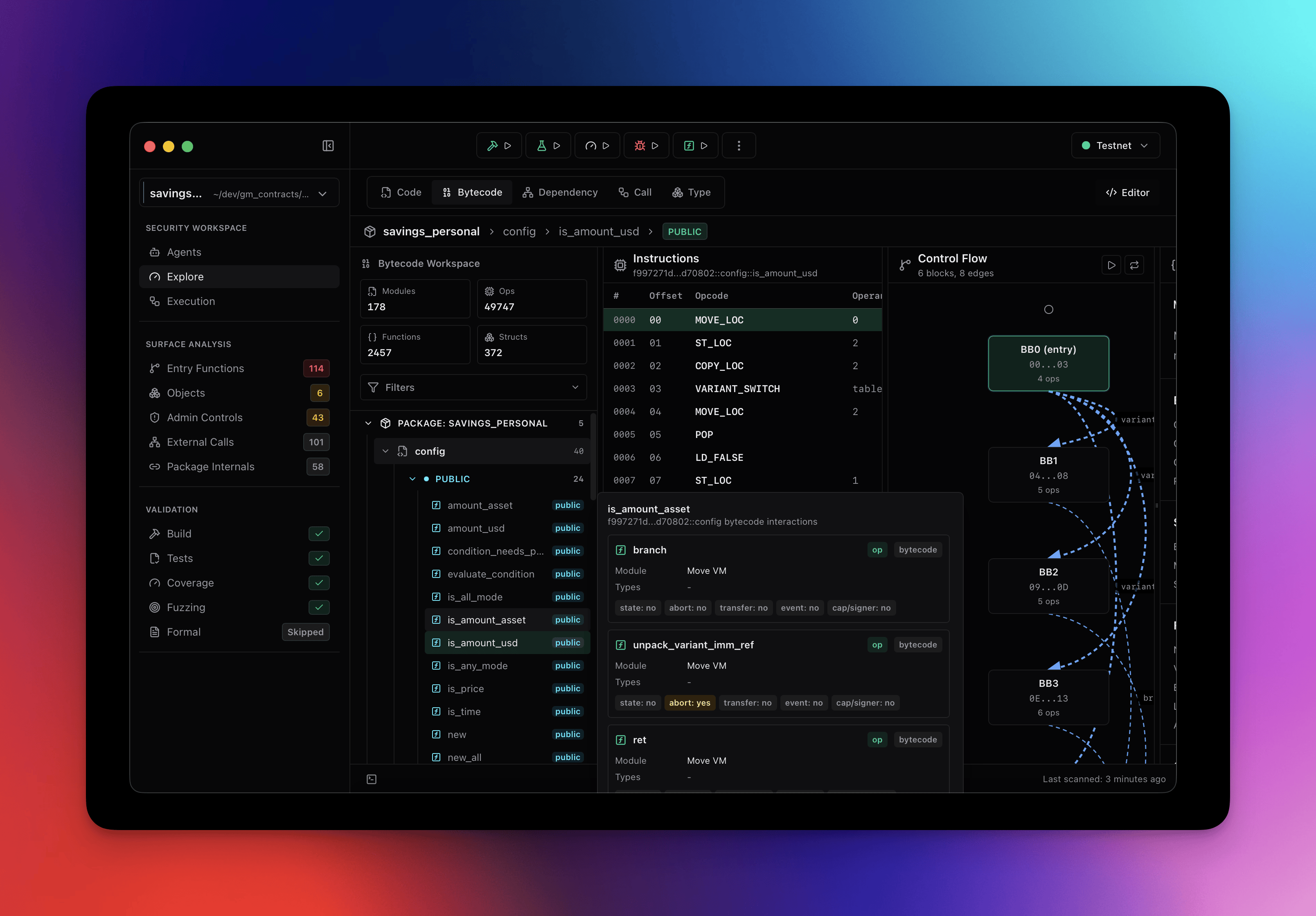
Bytecode and control flow
The Bytecode view shows the compiled instructions for a selected function, including opcodes and operands. A control-flow graph appears on the right.
Use these views to trace execution paths and understand low-level behavior.
Graphs
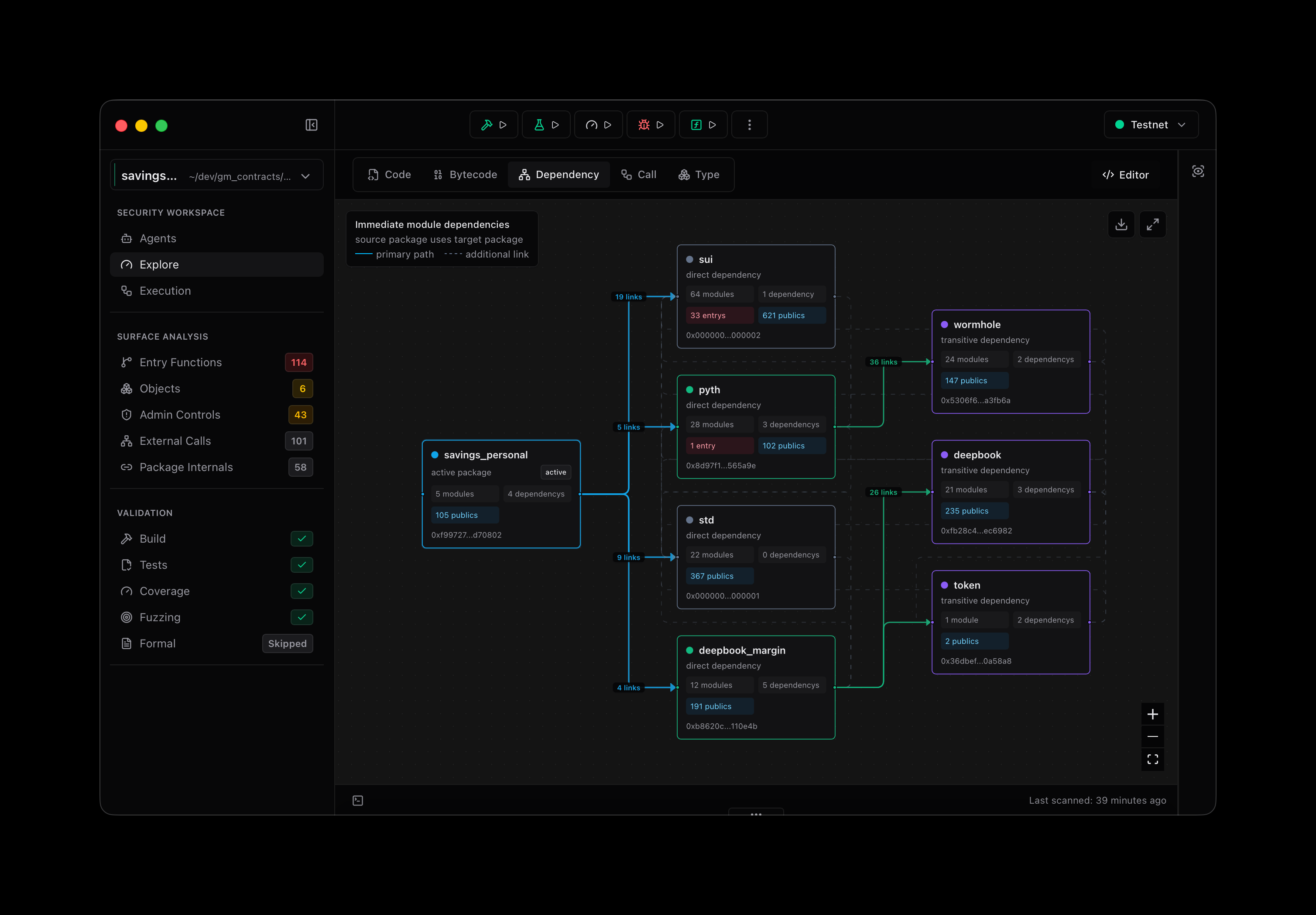
The Dependency, Call, and Type tabs render interactive graphs of relationships in your package and its dependencies.
Explore direct and transitive connections, with node labels showing module counts, entry points, and public functions.
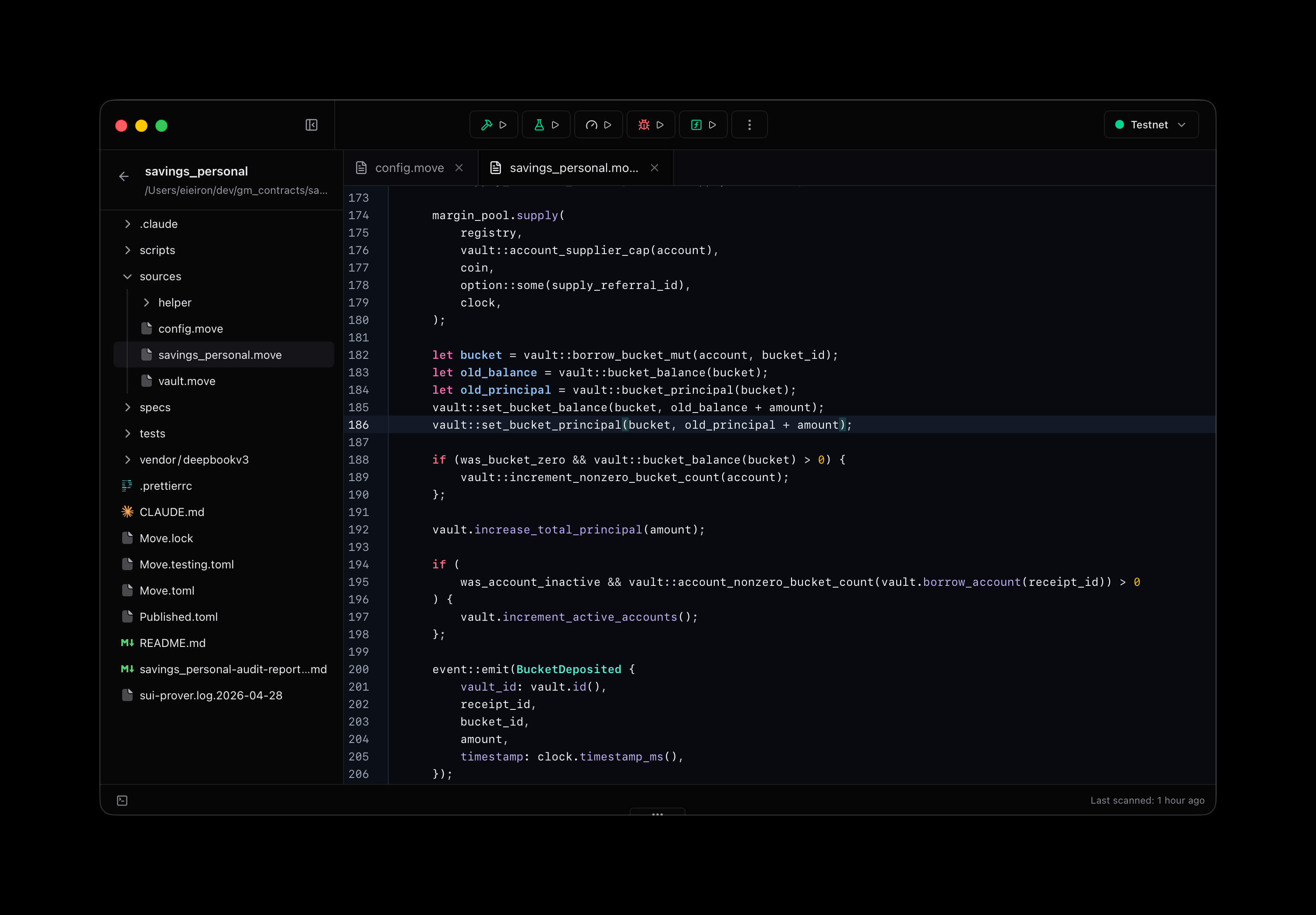
Editor mode
Toggle into editor mode for a traditional development experience. The left sidebar shows the full project file tree instead of the security analysis panel. You open Move source files in tabs and edit them directly in the main editor pane.
The top inspection tabs (Code, Bytecode, Dependency, and others) remain accessible.
Workspace
Navigate the app through these main areas:
- Explore: Inspect the package in the security-focused layout (surface analysis, module trees, bytecode, graphs) or switch to editor mode with a project file tree and full code editor.
- Agents: Launch and steer AI agents for security analysis.
- Execution: Run builds, tests, and other commands with live logs.
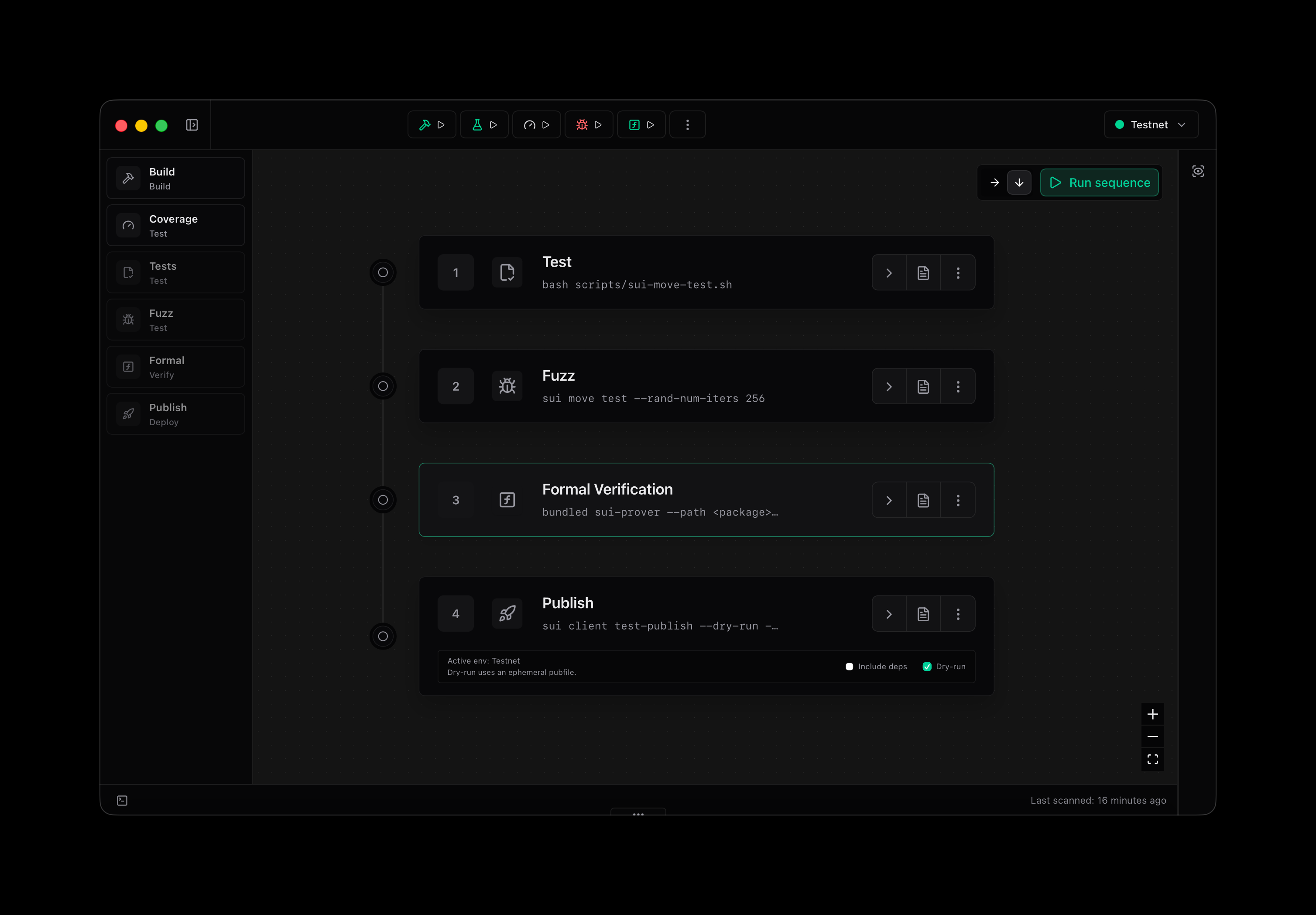
- Workflows: Build and run visual sequences of Build, Coverage, Test, Fuzz, Formal, and Publish steps.
- Attack Surface, Tests, Fuzzing, Formal, Audit, CI: Access specialized security workflows.
Switch between the security analysis layout and editor mode using the controls in the top bar. The top bar also shows the active package selector and network (for example Testnet).
Workflows
Build visual sequences of tasks to run multi-step processes such as testing, fuzzing, formal verification, and publishing.
The left sidebar shows the available step types:
- Build
- Coverage
- Tests
- Fuzz
- Formal
- Publish
Add and arrange steps into a connected vertical pipeline. Each step displays its command or script. You run the full sequence with the Run sequence button or use dry-run mode to preview execution.
Agent collaboration
Use the same autonomous and steerable agent system available everywhere in Peregrine.
Agents explore, test, challenge, and validate findings while you monitor progress, pause execution, or provide direction through the interface.
Results, evidence, and memory stay available across sessions.
Supporting capabilities
The app gives you immediate access to:
- Real-time package indexing and security insights
- Module signature inspection
- Build and command logging
- Integrated terminal for direct interaction (including agent sessions)
- Surface analysis and other diagnostic tools
All work happens against a safe snapshot of your project.
Configuration
Customize the environment in the settings screen.
Configure appearance, the Sui toolchain and Move analyzer, security analyzers and plugins, and the model providers and parameters you use for agents.
The desktop app lets you visually inspect and interact with the full power of Peregrine’s security analysis and agent capabilities.